Multi-Cursor in VSCodium and Possibly Visual Studio Code
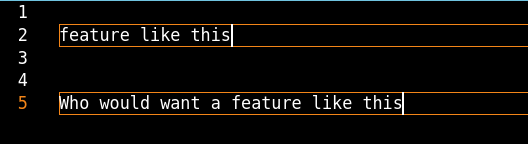
This article provides information about Multi-Cursor editing in VSCodium that may be relevant to Visual Studio Code as well. Occasionally while editing text in VSCodium, I find orange lines on the screen and the characters that I type repeated in multiple locations. This is really annoying, as I can't think of a single case where I would want this behavior, and it's not easy to correct what has gone wrong.
This apparently happens when I accidentally hold ALT while clicking somewhere to place the cursor. Instead of moving the cursor, VSCodium inserts characters typed subsequently at both the original cursor location and where I clicked, through a feature called Multi-Cursor. This happens to me surprisingly frequently, and it seems unlikely that I'm accidentally pressing ALT while trying to move the cursor that often, so there may be other actions that trigger Multi-Cursor functionality.
Luckily, the UI adds some lines to indicate when this multi-cursor feature is active. If I see these before I continue typing, I can press SHIFT+ESC to turn off the second cursor and then use the mouse to position the cursor where I had wanted it. If I have typed and don't want to lose what I typed, then I have to select what I inserted, CTRL+X to cut it, CTRL+Z to undo it, use the mouse without the ALT key to position the cursor, and then CTRL+V to paste what I cut.
You can do the following to change this behavior to activate on CTRL instead of ALT, which you might be less likely to hold by accident when positioning the cursor, but it seems impossible to disable it completely.
CTRL+,to bring up settings.- Search for
editor.multiCursorModifier. - Change the value in the drop-down from
alttoctrlCmd.